Invisible Mode: How InterviewBee Stays Completely Undetected
The only AI Interview Assistant that cannot be detected.
See The Invisibility Difference
Compare what you see versus what the interviewer sees. The difference is invisible.
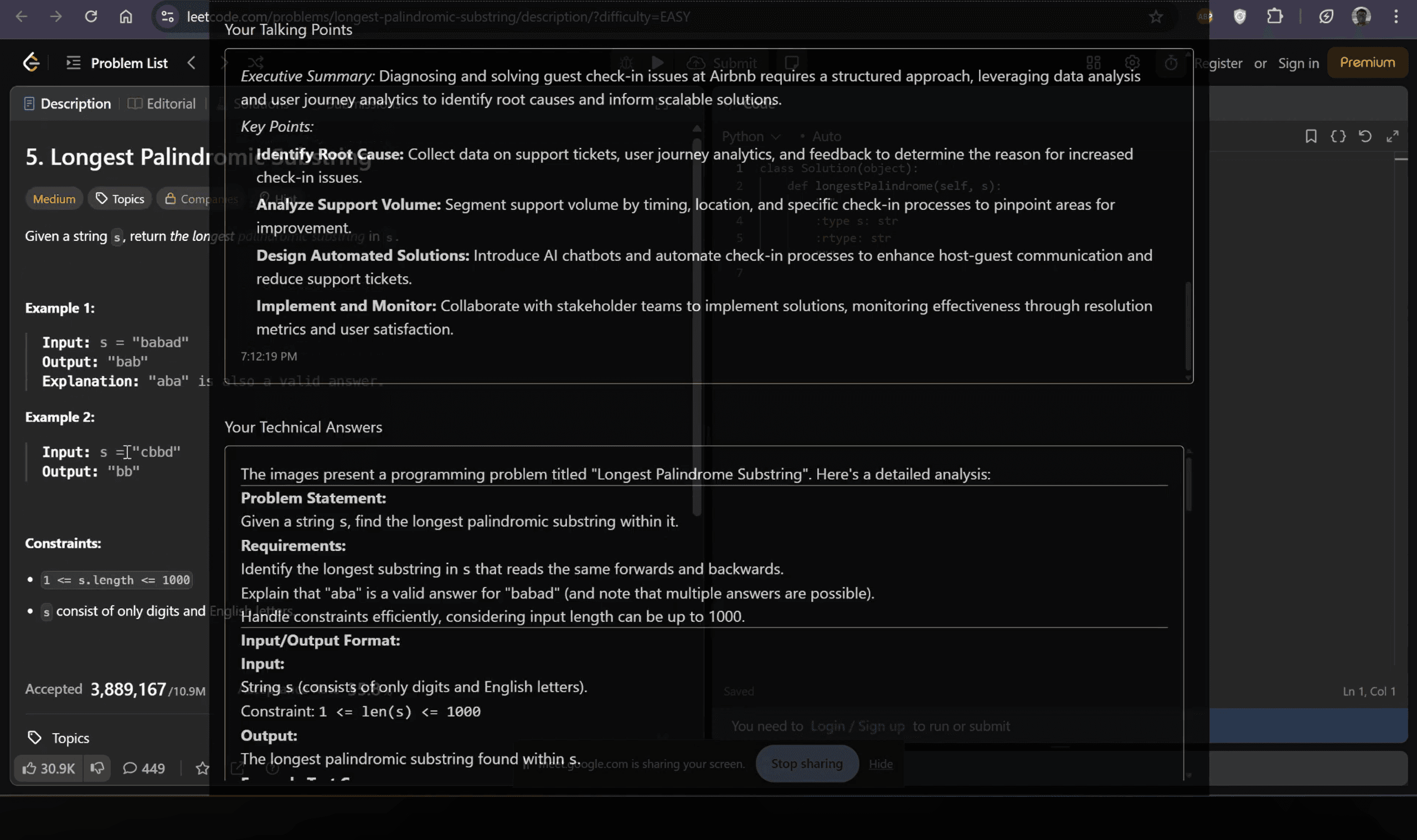
Your Screen (Candidate View)
You see the AI assistant helping you in real-time
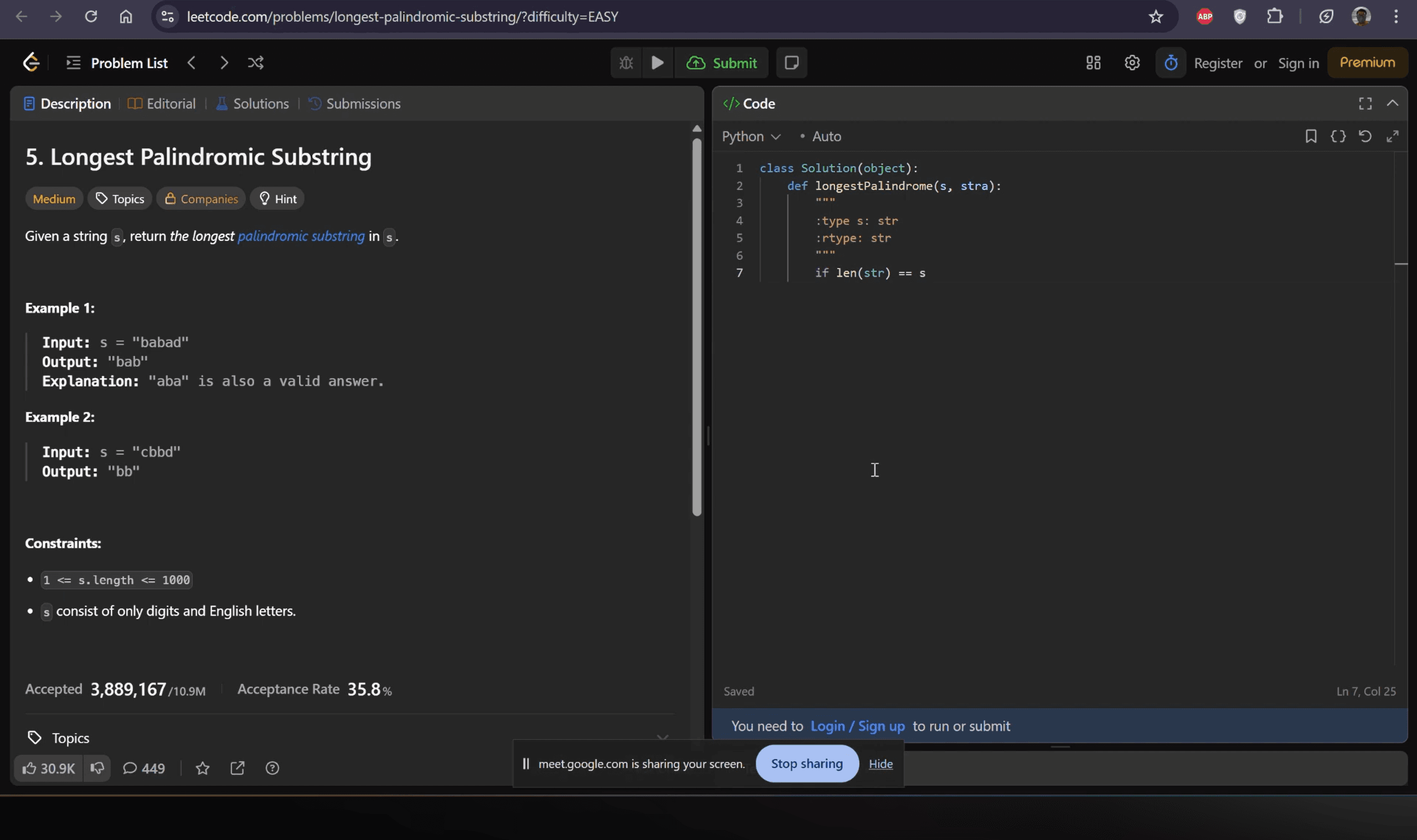
Interviewer's Screen
They see nothing - completely clean and professional
Invisible Support for Every Type of Interview
InterviewBee's Invisible Mode is built to accommodate all major interview formats, no matter how complex the scenario.
Coding Interviews
You can capture the coding prompt using the screenshot feature and receive structured hints, edge cases, approaches or pseudocode instantly.
Product & Strategy Interviews
You receive clear, well-organized frameworks, product sense breakdowns, market insights and STAR-ready talking points tailored to your profile and the role.
Presentation & Demo Interviews
You can share your slides, demo a design or walk through a portfolio without the assistant ever being visible on the shared screen.
Where Is InterviewBee 100% Invisible?
InterviewBee offers two ways to use Invisible Mode, depending on whether you are using the desktop app or the web version.
Desktop App
Works invisibly on all major platforms. The docked window is OS-native and does not appear in screen share, recordings, or monitors.
- Zoom (desktop + browser)
- Google Meet (desktop + browser)
- Microsoft Teams (desktop + browser)
- CoderPad (browser)
- HackerRank (browser)
- Any browser or desktop app based interview platform
Web App
Works invisibly on browser-based interviews. Detect-safe for tab-sharing but may not be suitable for OS-level screen sharing.
- Google Meet (Web browser)
- Zoom Web
- Microsoft Teams Web
- Webex (Web browser)
- Skype (Web browser)
- Any Chromium-based web interview platform
Frequently Asked Questions
Everything you need to know about our 100% undetectable invisibility mode
Is the assistant visible to the interviewer?
No. The assistant never appears on the interviewer's screen, recordings or meeting interface. It stays entirely on your device.
Will the assistant show up when I share my entire screen?
No. Invisible Mode is specifically engineered so the assistant window does not appear in full-screen share, window share or desktop share.
Does it work during coding assessments?
Yes. You can share your coding screen while discreetly receiving hints, structured solutions and guidance.
Is it safe to use?
InterviewBee does not modify your meeting software, does not inject code into your call, and does not alter the video feed. All suggestions are generated privately on your side.
Does it adapt to the job I'm applying for?
Yes. InterviewBee uses your CV and your job description to tailor talking points, examples and role-specific responses.
Can I try it before using it in a real interview?
Yes. You can run the simulation for the different interview scenarios.